Documentation Index
Fetch the complete documentation index at: https://developers.authlete.com/llms.txt
Use this file to discover all available pages before exploring further.
This page is for Authlete 2.x. For current (3.0) documentation, see this page. First Steps
The Terraform provider does not support creating the service owner account, so the first step is to retrieve the Service Owner API Key and Secret.
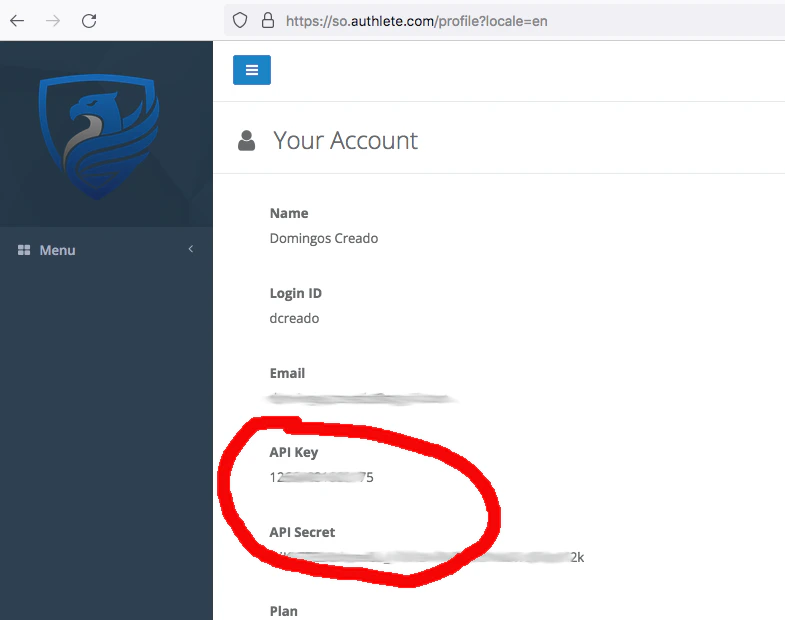
You can try it on Authlete’s Shared Cloud by first creating a test account on the signup page, head to Your account page link and take note of API Key and API Secret.
If you are using a dedicated setup, update the url to your Authlete SO console.
Creating the project
To get started let’s create a simple project with one Authlete service. You can find the source code on https://github.com/authlete/authlete-terraform-samples under simple_service directory.
Keep in mind that Terraform projects have very loose structure requirements and are guided by conventions, so there is no hard requirement on the file structure.
This sample shows a minimal configuration required for managing a service on Authlete using Terraform provider.
Creating an Authlete account and setting your environment
In this sample, we will use environment variables to configure the Authlete Terraform plugin.
To get started, head to your profile page and take note of API Key and API Secret.
After taking note, go to command line and run the command line below:
% export AUTHLETE_SO_KEY="XXXXXXXXXXXXXX"
% export AUTHLETE_SO_SECRET="XXXXXXXXXXXXXXXXXXXXXXXXXXXXXX"
% export AUTHLETE_API_SERVER="https://api.authlete.com"
Declaring the dependency to the provider and downloading it
The Authlete provider should be included in your project as a dependency and Terraform will take care of downloading it
and making available to you.
The providers dependencies are declared in a file provider.tf, by convention, and the structure is as below:
% cat provider.tf
terraform {
  required_providers {
    authlete = {
      source = "authlete/authlete"
      version = ">= 0.5.2"
    }
  }
}
% terraform init

Initializing the backend...

Initializing provider plugins...
- Finding authlete/authlete versions matching ">= 0.5.2"...
- Installing authlete/authlete v0.5.2...
- Installed authlete/authlete v0.5.2 (self-signed, key ID E51D52BC3A580750)

Partner and community providers are signed by their developers.
If you'd like to know more about provider signing, you can read about it here:
https://www.terraform.io/docs/cli/plugins/signing.html

Terraform has created a lock file .terraform.lock.hcl to record the provider
selections it made above. Include this file in your version control repository
so that Terraform can guarantee to make the same selections by default when
you run "terraform init" in the future.

Terraform has been successfully initialized!

You may now begin working with Terraform. Try running "terraform plan" to see
any changes that are required for your infrastructure. All Terraform commands
should now work.

If you ever set or change modules or backend configuration for Terraform,
rerun this command to reinitialize your working directory. If you forget, other
commands will detect it and remind you to do so if necessary.
Declaring the service resource
In Terraform vocabulary, the Authlete Services and Clients are resources. So we need to declare a resource with the Authlete-specific
type in order to have it created. Go ahead and create a main.tf as the content below:
% cat main.tf
provider "authlete" {

}

resource "authlete_service" "as" {
  issuer = "https://as.mydomain.com"
  service_name = "MyDomainAS"
  description = "A terraform based service for managing the Authlete based OAuth server"
  supported_grant_types = ["AUTHORIZATION_CODE"]
  supported_response_types = ["CODE"]
}

output "api_key" {
   value = authlete_service.as.id
}

output "api_secret" {
   value = authlete_service.as.api_secret
   sensitive = true
}
authlete_service with id as in the project. That name is specific to Terraform
and it is not applied to the server-side configuration of Authlete. The properties in that block are straight forward: we are declaring
an OAuth server that will accept only authorization code flow and the name on the server side will be MyDomainAS.
The last 2 blocks are the instructions to Terraform to make available the id (which is the api_key) and the api_secret that you
will use for configuring your AS and accessing that specific service in Authlete.
To create that OAuth server backend on Authlete, go to command line and run the command below:
% terraform apply --auto-approve

Terraform used the selected providers to generate the following execution plan. Resource actions are indicated with the following symbols:
  + create

Terraform will perform the following actions:

  # authlete_service.as will be created
  + resource "authlete_service" "as" {
      + api_secret                            = (known after apply)
      + client_id_alias_enabled               = false
      + description                           = "A terraform based service for managing the Authlete based OAuth server"
      + direct_authorization_endpoint_enabled = false
      + direct_introspection_endpoint_enabled = false
      + direct_jwks_endpoint_enabled          = false
      + direct_revocation_endpoint_enabled    = false
      + direct_token_endpoint_enabled         = false
      + direct_user_info_endpoint_enabled     = false
      + id                                    = (known after apply)
      + issuer                                = "https://as.mydomain.com"
      + service_name                          = "MyDomainAS"
      + single_access_token_per_subject       = true
      + supported_grant_types                 = [
          + "AUTHORIZATION_CODE",
        ]
      + supported_response_types              = [
          + "CODE",
        ]
    }

Plan: 1 to add, 0 to change, 0 to destroy.

Changes to Outputs:
  + api_key    = (known after apply)
  + api_secret = (sensitive value)
authlete_service.as: Creating...
authlete_service.as: Creation complete after 6s [id=6505525048617]

Apply complete! Resources: 1 added, 0 changed, 0 destroyed.

Outputs:

api_key = "6505525048617"
api_secret = <sensitive>
$ terraform output api_key
"6505525048617"
$ terraform output api_secret
"RtkKFbVqXXXXXXXXXXXXXXXXG6CNITo"
Managing the configuration
With the service created, as there will be requirements changes, a change management process needs to be established. Keep in mind that
Terraform has the concept of workspaces and that can be handy for
managing Test, Preproduction and Production configurations of services on Authlete.
Regardless of how are you managing the state changes and version control of the scripts, the approach for changing the Authlete Service
is to change the resource in the .tf file and apply those changes.
Let’s use the service created in the previous section and include support for the client credentials grant type. So we change the
main.tf that we have created to be like below and apply those changes using the terraform apply command:
% cat main.tf
provider "authlete" {

}

resource "authlete_service" "as" {
  issuer = "https://as.mydomain.com"
  service_name = "MyDomainAS"
  description = "A terraform based service for managing the Authlete based OAuth server"
  supported_grant_types = ["AUTHORIZATION_CODE", "CLIENT_CREDENTIALS"]
  supported_response_types = ["CODE"]
}

output "api_key" {
   value = authlete_service.as.id
}

output "api_secret" {
   value = authlete_service.as.api_secret
   sensitive = true
}
% terraform apply
authlete_service.as: Refreshing state... [id=6505525048617]

Terraform used the selected providers to generate the following execution plan. Resource actions are indicated with the following symbols:
  ~ update in-place

Terraform will perform the following actions:

  # authlete_service.as will be updated in-place
  ~ resource "authlete_service" "as" {
        id                                            = "6505525048617"
      ~ supported_grant_types                         = [
            "AUTHORIZATION_CODE",
          + "CLIENT_CREDENTIALS",
        ]
        # (65 unchanged attributes hidden)
    }

Plan: 0 to add, 1 to change, 0 to destroy.

Do you want to perform these actions?
  Terraform will perform the actions described above.
  Only 'yes' will be accepted to approve.

  Enter a value:
CLIENT_CREDENTIALS grant type and Terraform is asking for your approval to change the service definition.
After confirming the change the provider will fetch the status of that service from server and apply that specifically change.
Do you want to perform these actions?
  Terraform will perform the actions described above.
  Only 'yes' will be accepted to approve.

  Enter a value: yes

authlete_service.as: Modifying... [id=6505525048617]
authlete_service.as: Modifications complete after 6s [id=6505525048617]

Apply complete! Resources: 0 added, 1 changed, 0 destroyed.

Outputs:

api_key = "6505525048617"
api_secret = <sensitive>
terraform import.
Next Step