
Documentation Index
Fetch the complete documentation index at: https://developers.authlete.com/llms.txt
Use this file to discover all available pages before exploring further.
Preface
This document describes how to evaluate FAPI-compliant authorization flow and API request using an an Authlete service, that has been configured with settings described in Financial-grade API (FAPI) Basics (hereinafter “FAPI Basics”), and other components including Authlete’s reference implementations.
Prerequisites
Before doing this, you are expected to have knowledge of OpenID Connect and Authlete by running through the following tutorial. You also need to have an Authlete service that has been configured with settings in accordance with FAPI Basics below. Run the instructions (A complete example walk through) in the document to make sure that your Authlete service works properly. The following software components are used in this tutorial. Prepare your lab environment that can execute them.- Required for this tutorial
- authlete/java-oauth-server: A reference implementation of authorzation server
- authlete/java-resource-server: A reference implementation of resource server
- Reommended, but you can choose other alternative tools
- Apache HTTP Server (hereinafter “Apache”): A reverse proxy for authorization server and resource server
- curl: An API client
- OpenSSL: A tool to generate private keys and public key certificates
Configuring an authorization server
In this section, we will cover the following tasks:- Deploying a java-oauth-server package
- Testing connection

Configuring java-oauth-server
We will download and configure java-oauth-server. Detailed instructions are described in its document.Downloading the source
Download java-oauth-server usinggit command.
Configuration
Edit the following entries in its configuration file,authlete.properties.
Put the API key and the secret of your Authlete service that has been configured in accordance with FAPI Basics.
Starting the server
Start java-oauth-server usingmvn command.
Test
Connect to http://localhost:8080 using a Web browser and the following page should be displayed.
Executing FAPI authorization flow (1)
Generate a request object in accordance with instructions in FAPI Basics and craft an authorization request using the object. The following values are used in this tutorial.- Payload (replace the value of
client_id(1756...3766) with yours that has been automatically generated during FAPI Basics)
- Signed JWT (use your signing key that has been generated in FAPI Basics for its signature)
- Authorization request (replace the values of
client_id(1756...3766) andrequest(eyJr...YifQ.ewoi...iCn0.ztl2...tjAA) with yours determined above)

john / john to Login ID / Password fields and click Authorize button.
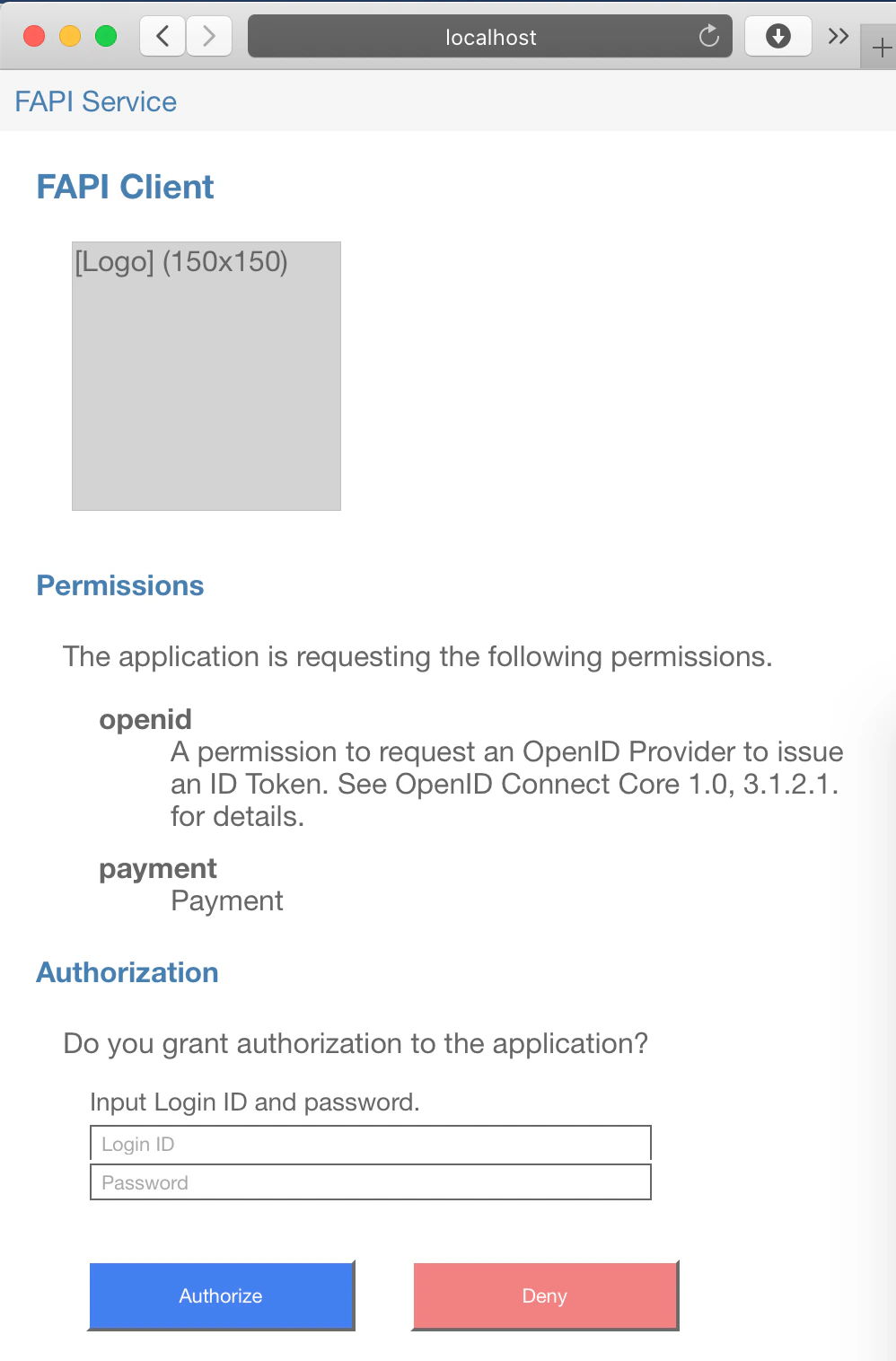
https://client.example.org/cb/example.com/#code=... and show an error page stating that the host client.example.org doesn’t exist.

Authorization response
Copy the URL of the error page like below.code parameter in the URL.
Token request
Let’s craft a token request that contains the value ofcode (0Io2...sdkQ for example)
and send it to java-oauth-server’s token endpoint (/api/token).
In this section, we will try to do client authentication using client_id / client_secret as follows.
Replace values of these parameters with yours that have been automatically generated during FAPI Basics.
This tutorial uses curl, but you can use other equivalent tools.
Token response
You will receive a token response like this:
- java-oauth-server was unable to extract any client certificates from the token request as no mutual TLS connection has been established between the client (
curlcommand in this tutorial) and java-oauth-server - Thus java-oauth-server didn’t include any client certificates in a request to Authlete’s (/auth/token API)
- So Authlete couldn’t issue any certificate-bound access tokens and made a response with A244308 error
Authlete’s error response examples described in this tutorial include
In the next section, we will add a reverse proxy to accept client certificates from clients to solve the error.
"error_description" and "error_uri".
You can omit them by configuring Authlete service settings.
See an article in Authlete Knowledge Base for details.Enabling TLS for the authorization server
In this section, we will cover the following tasks:- Configuring a reverse proxy
- Configuring a client

Configuring a reverse proxy (1)
FQDN settings
Add the following entry to/etc/hosts
so that both Web browsers and clients can find Apache to be installed in your lab environment, using as.example.com as FQDN.
Installing Apache
Install Apache in your lab environment.This tutorial uses Homebrew on MacOS to install Apache, but you can use other equivalent installation methods and/or reverse proxy software.
/usr/local/etc/httpd directory as the primary location of Apache’s configuration files.
Preparing a server certificate
This tutorial uses a self-signed certificate to make configuration steps simpler.
It is not appropriate for production use.
Creating a private key and a public key certificate
Create an RSA private key and a public key certificate for Apache, usingopenssl command.
This tutorial uses OpenSSL, but you can use other equivalent tools.
server.key (a private key) and server.crt (a public key certificate) are created.
Deploying the private key and the public key certificate
Deploy these two files to arbitrary location in your lab environment. This tutorial copies them under/usr/local/etc/httpd directory.
Configuring TLS for Apache
Content of Apache’s configuration files may be different from the example below, due to installation methods.
Adjust them for your lab environment.
httpd.conf
We will configure basic Apache settings to:- Disable listening port 8080 (as java-oauth-server uses it)
- Enable mod_proxy and mod_ssl related modules (to get Apache working as a reverse proxy and accepting TLS connection)
httpd.conf are as follows.
TLS related settings are to be included from another file (extra/httpd-ssl.conf).
extra/httpd-ssl.conf
Please be advised that the following settings of TLS are insufficient
for production use. These settings are intended to enable mutual TLS just for this tutorial.
In this tutorial, we configure TLS and reverse proxy settings to:
- Use as.example.com as its server name (while its listening port (8443) unchanged)
- Meet the FAPI provisions (by using TLS 1.2 and limited sets of cypher suites)
- Include a client certificate in X-Ssl-Cert header (so that /api/token endpoint of java-oauth-server can extract the value and include it in a request to Authlete API (/auth/token API), if it is set in the request from the reverse proxy)
- Work as a reverse proxy that forwards requests accepted at https://as.example.com:8443/ to http://localhost:8080/ (java-oauth-server)
extra/httpd-ssl.conf are as follows.
Starting Apache
Start the Apache usingapachectl command.
Settings for a client
Preparing a client certificate
In this tutorial, we will use a self-signed certificate to make configuration steps simpler.
It is not appropriate for production use.
Creating an RSA private key and a public key certificate
Executeopenssl command as follows to create a private key and a public key certificcate.
client.key (a private key) and client.crt (a public key certificate) are created.
We will use them to make token requests with curl.
Authorization request and response
Make an authorization request in the same way as Executing FAPI authorization flow (1).You can use either http://localhost:8080/api/authorization (the same as above) or
https://as.example.com:8443/api/authorization (Apache) as an authorization endpoint.
Extract a value of code parameter from an authorization response. The value in this tutorial is as follows.
Token request
Craft a token request and send it to the token endpoint of java-oauth-server (/api/token). The different parts from the previous example (Executing FAPI authorization flow (1)) are:- Endpoint URL: using
https://as.example.com:8443instead ofhttp://localhost:8080 - Client authentication method: using the private key (
client.key) and the public key certificate (client.crt) instead ofclient_secret
curl command to be executed is like below.
(replace the values of client_id and code with appropriate ones in your lab environment)
Token response
You should receive a token response like below.nbN3...LAU8 for example) through mutual TLS connection. In the backstage, Authlete has made the access token bound to the client certificate.
In the next section, we will attempt to make an API request with an access token to a resource server.
Configuring a resource server
In this section, we will cover the following tasks:- Deploying a java-resource-server package
- Testing connection

Configuring java-resource-server
We will download and configure java-resource-server. Instructions are described in its document.Downloading the source
Download java-resource-server usinggit command.
Configuration
Edit the following entries in its configuration file,authlete.properties.
Put the API key and the secret that are
the same values as specified for java-oauth-server.
Starting the server
Start java-resource-server usingmvn command.
Test
Connect to http://localhost:8081 using a Web browser and the following page should be displayed.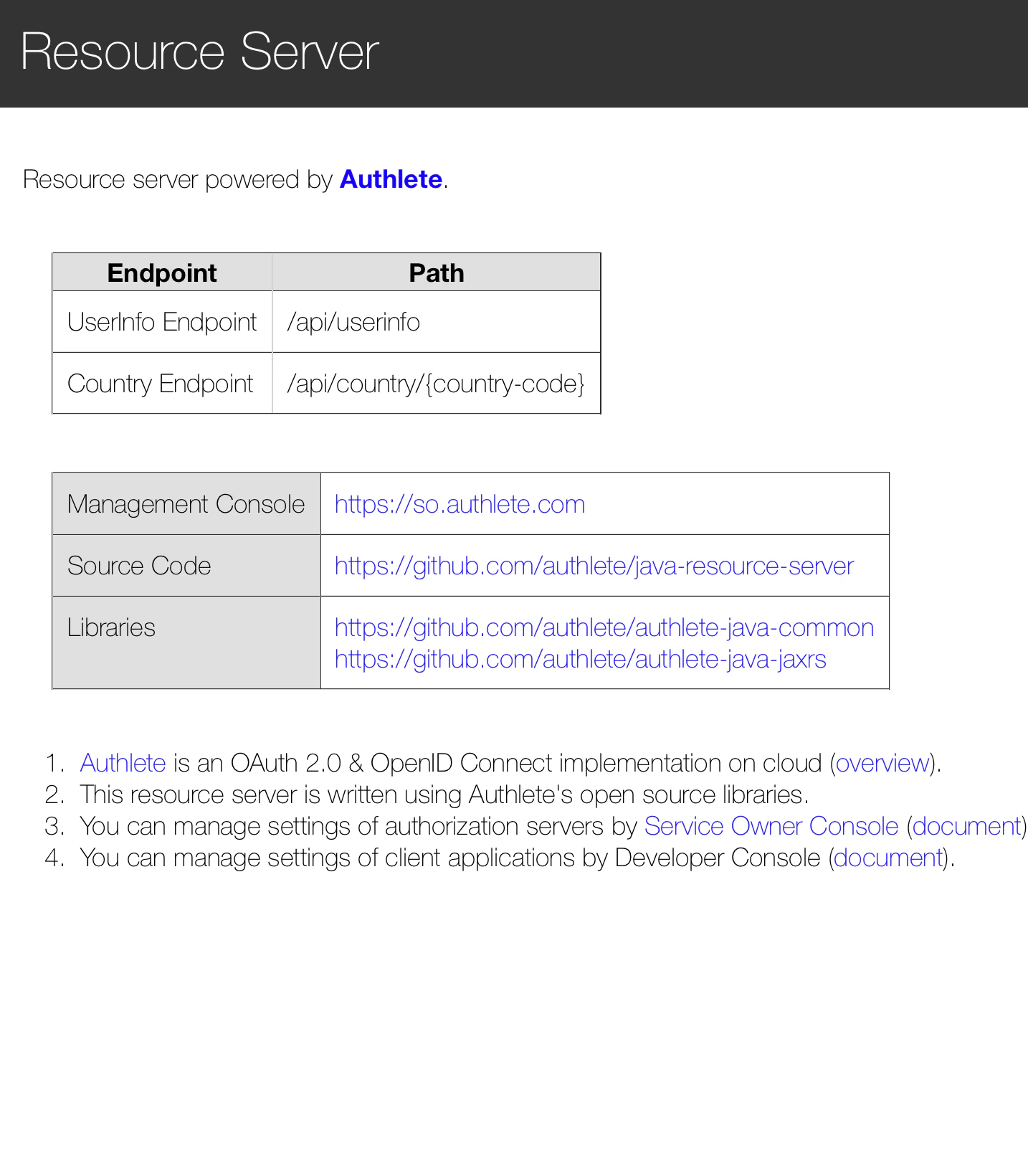
Executing an API request (1)
Let’s try to make an API request with an access token to “Country Endpoint” of java-resource-server, usingcurl command.
The access token can be obtained by doing the flow described in Executing FAPI authorization flow (2). In this tutorial, the
following value is used.
Authorization header.
The examples below show the request and the subsequent response.
-v option is added to curl command so that it can enable verbose output especially header information.
- java-resource-server was unable to extract any client certificates from the token request as no mutual TLS connection has been established between the client (
curlcommand) and java-resource-server - Thus, java-resource-server didn’t include any client certificates in a request to Authlete’s /auth/introspection API
- So, Authlete couldn’t check the binding between the access token and its corresponding client certificate and made a response with A065304 error
Enabling TLS for the resource server
In this section, we will cover the following tasks that are basically the same as the settings for java-oauth-server done in the former section:- Additional settings for the reverse proxy

Configuring a reverse proxy (2)
FQDN settings
Modify the entry that has been added to/etc/hosts during Configuring a reverse proxy (1) so that curl can connect to Apache using rs.example.com.
Configuring TLS for Apache
extra/httpd-ssl.conf
Add the following entries to theextra/httpd-ssl.conf file.
These settings, the same as Configuring a reverse proxy (1) except the server name and destinations of the reverse proxy, are to:
- Declare these settings are applied to rs.example.com:8443
- Meet the FAPI provisions (by using TLS 1.2 and limited sets of cypher suites)
- Include a client certificate in X-Ssl-Cert header (so that /api/country endpoint of java-resource-server can extract the value and include it in a request to Authlete API (/auth/introspection API), if it is set in the request from the reverse proxy)
- Work as a reverse proxy that forwards requests accepted at https://rs.example.com:8443/ to http://localhost:8081/ (java-resource-server)
extra/httpd-ssl.conf are as follows.
Starting Apache
Stop and start the Apache usingapachectl command.
Executing an API request (2)
Make an API request usingcurl command in the same way as Executing an API request (1).
The access token can be obtained by doing the flow described in Executing FAPI authorization flow (2). In this tutorial, the
following value is used.
Authorization header.
The different parts from the previous example (Executing an API request (1)) are:
- Endpoint URL: using
https://rs.example.com:8443instead ofhttp://localhost:8081 - Client authentication method: using the private key (
client.key) and the public key certificate (client.crt) in addition to the access token
curl command to be executed is like below.
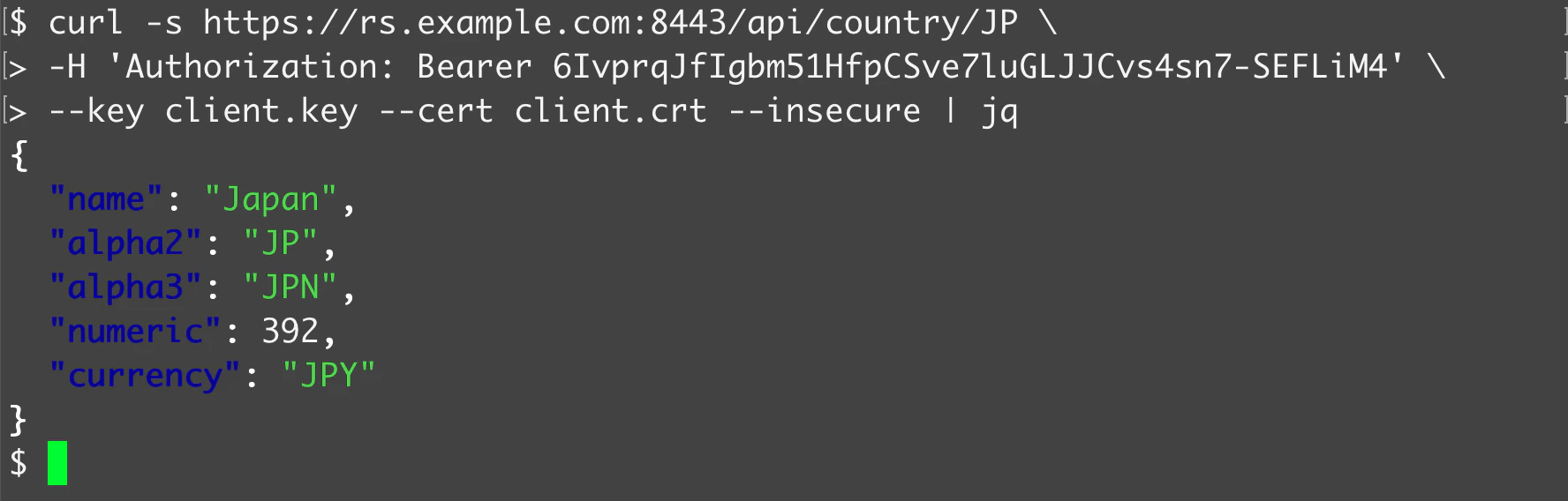
- java-resource-server extracted the client certificate from the mutual TLS connection and sent it to Authlete,
- Authlete validated the binding between the client certificate and the access token, and
- java-resource-server has processed the API request as expected.