
Documentation Index
Fetch the complete documentation index at: https://developers.authlete.com/llms.txt
Use this file to discover all available pages before exploring further.
For Authlete 2.x documentation, see 2.x version.
Configuring JWK Set for an OAuth/OIDC Client
Preface
In order to verify a signature of request objects coming from a client, or to provide encrypted ID tokens to a client, you have to register the client’s public key to Authlete for signature verification and/or message encryption. This article explains how to register a JWK set in the settings of an OAuth/OIDC client registered with an Authlete service.Preparing a JWK set
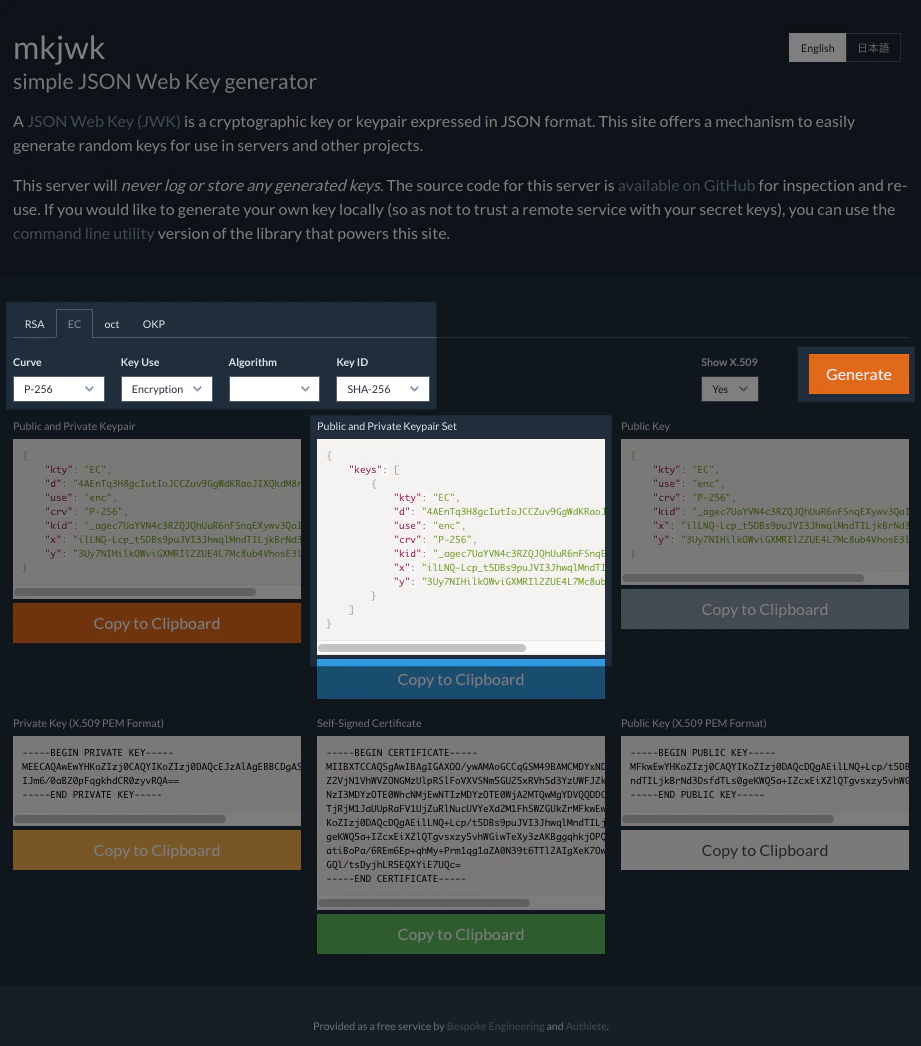
Instruction in this section is for illustrative purposes. Do not apply the following JWK set to your production environment.An administrator of the OAuth / OIDC client is to prepare a JWK set including a public key. Note that the key set must not include a private key. The following example illustrates usage of mkjwk.org tool to generate a key pair for encryption, and parameters specified for it.
| Item | Value |
|---|---|
| Key Type | EC (Elliptic Curve) |
| Curve | P-256 |
| Key Use | Encryption |
| Algorithm | (none) |
| Key ID | SHA-256 |
Registering a JWK set
To add a JWK set for a client in the Authlete Management Console, follow these steps:- Log in to the Authlete Management Console.
- Navigate to Client Settings for the desired client.
- Select the Key Management > JWK Set tab from the left-hand menu.
- Under the JWK Set Content section, paste your JSON Web Key Set (JWK Set) into the input field.
- Click Save Changes to apply the configuration.
 Now the JWK set has been registered for the OAuth / OIDC client.