
Documentation Index
Fetch the complete documentation index at: https://developers.authlete.com/llms.txt
Use this file to discover all available pages before exploring further.
For Authlete 2.x documentation, see 2.x version.
Overview
This article explains an example on changing a signing key for ID tokens. In order to have Authlete to sign an ID token with the new key, you may have to configure both a service of Authlete and a client registered to the service.Service settings
In the Authlete console, go to your service settings, underKey Management > JWK Set. You will then need to register a JWK set document in the JWK Set Content field.
You can refer to the following article for instructions on how to generate a JWK :
After the registration, select the value of “kid” of this keypair set (“1” in this example) for the ID Token Signature Key ID field.
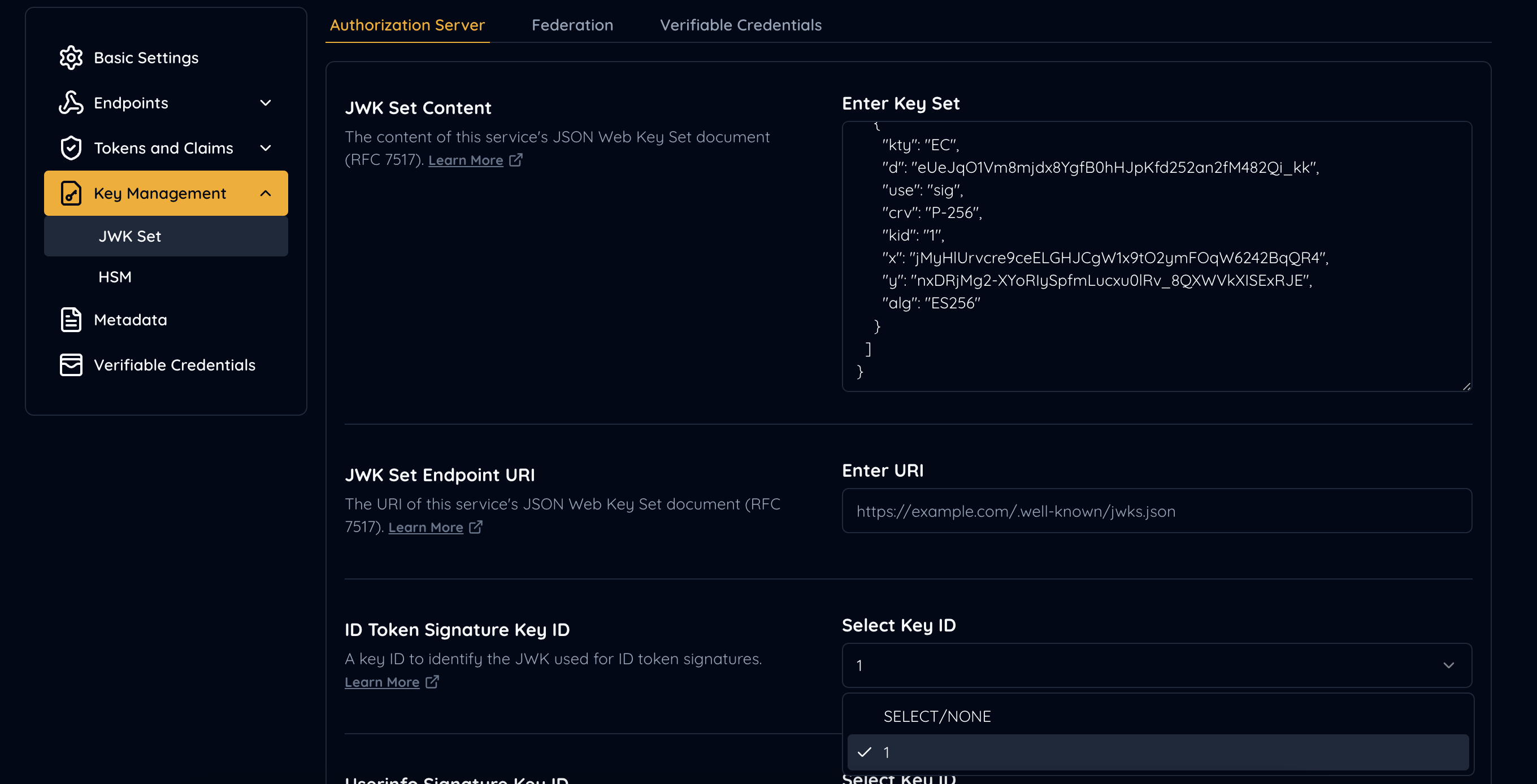 ID Token Signature Key ID
Client settings
In the Authlete console, go to your client settings, underTokens and Claims > ID Token. You will then need to select the ES256 parameter in the ID Token Signature Algorithm field, in order for the Authlete service to issue an ID token signed with the new key.
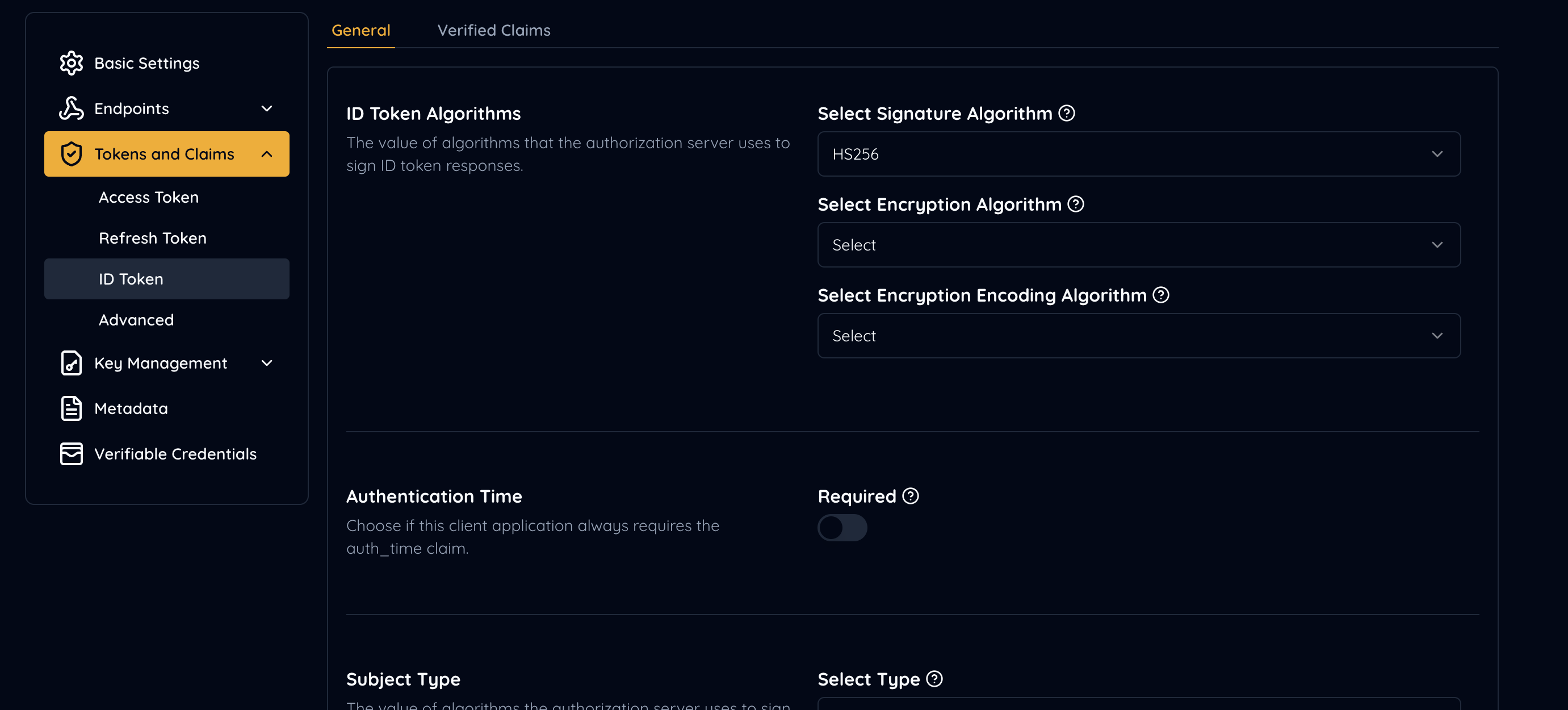 ID Token Signature Algorithm
With the settings above, Authlete will be using the ES256 key (identified by “kid=1”) to sign ID tokens for the client.
ID Token Signature Algorithm
With the settings above, Authlete will be using the ES256 key (identified by “kid=1”) to sign ID tokens for the client.