
For Authlete 2.x documentation, see 2.x version.
Configuring JWK Set for an OAuth/OIDC Client
Preface
In order to verify a signature of request objects coming from a client, or to provide encrypted ID tokens to a client, you have to register the client’s public key to Authlete for signature verification and/or message encryption. This article explains how to register a JWK set in the settings of an OAuth/OIDC client registered with an Authlete service.Preparing a JWK set
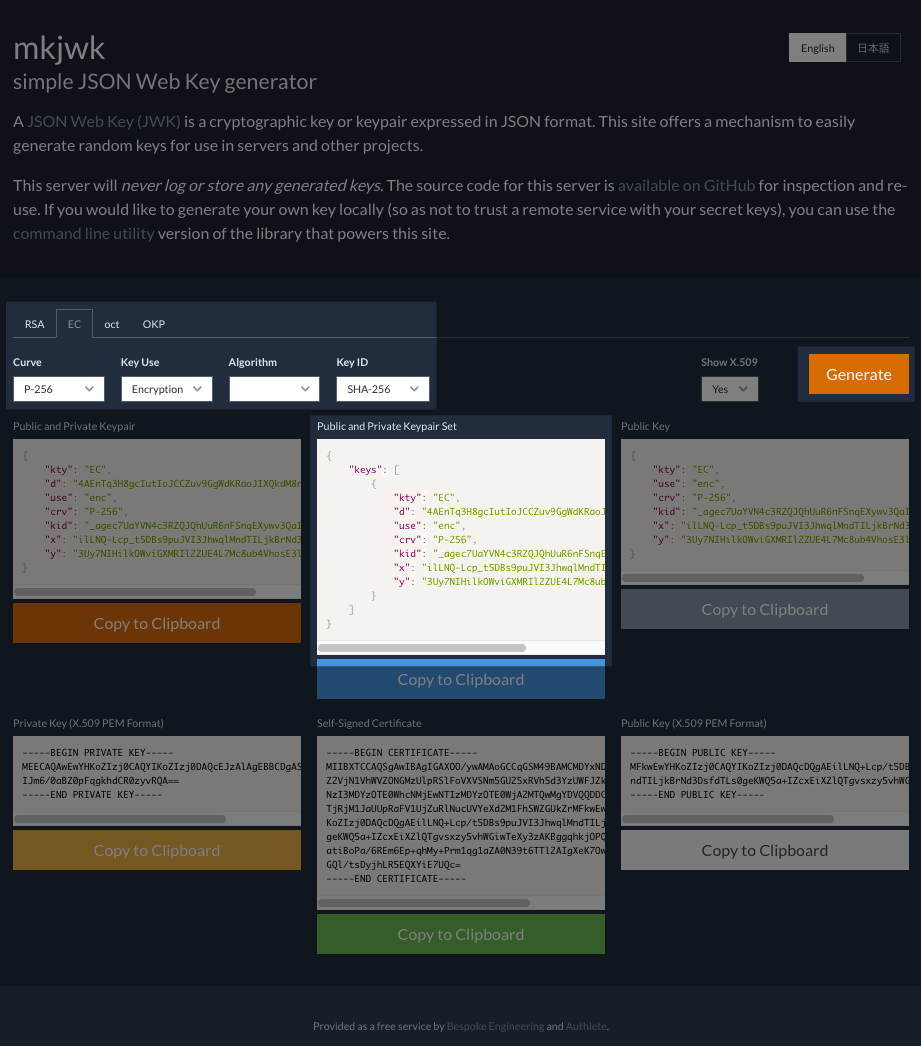
Instruction in this section is for illustrative purposes. Do not apply the following JWK set to your production environment.An administrator of the OAuth / OIDC client is to prepare a JWK set including a public key. Note that the key set must not include a private key. The following example illustrates usage of mkjwk.org tool to generate a key pair for encryption, and parameters specified for it.
By clicking “Generate” button, the tool shows the generated keys in various formats. We will use “Public and Private Keypair Set” in this example.
Registering a JWK set
To add a JWK set for a client in the Authlete Management Console, follow these steps:- Log in to the Authlete Management Console.
- Navigate to Client Settings for the desired client.
- Select the Key Management > JWK Set tab from the left-hand menu.
- Under the JWK Set Content section, paste your JSON Web Key Set (JWK Set) into the input field.
- Click Save Changes to apply the configuration.
 Now the JWK set has been registered for the OAuth / OIDC client.