> ## Documentation Index
> Fetch the complete documentation index at: https://developers.authlete.com/llms.txt
> Use this file to discover all available pages before exploring further.
# JWK set settings for an OAuth / OIDC client
> Technical information for registering a JWK set to settings of an OAuth / OIDC client in Authlete for signature verification and message encryption.
This page is for **Authlete 2.x**. For current (3.0) documentation, see [this page](/configuration-reference/key-management/jwk-set-settings-for-an-oauth-oidc-client).
# JWK set settings for an OAuth / OIDC client
## Preface
In order to verify a signature of request objects coming from a client, or to provide encrypted ID tokens to a client, you have to register the client's public key to Authlete for signature verification and/or message encryption.
This article explains how to register a JWK set to settings of an OAuth / OIDC client that is registered to an Authlete service.
## Preparing a JWK set
> Instruction in this section is for illustrative purposes. Do not apply the following JWK set to your production environment.
An administrator of the OAuth / OIDC client is to prepare a JWK set including a public key. **Note that the key set must not include a private key.**
The following example illustrates usage of [mkjwk.org](https://mkjwk.org/)
service to generate a key pair for encryption, and parameters specified for it.
| Item | Value |
| --------- | ----------------------- |
| Key Type | **EC (Elliptic Curve)** |
| Curve | **P-256** |
| Key Use | **Encryption** |
| Algorithm | **(none)** |
| Key ID | **SHA-256** |
By clicking “Generate” button, the tool shows the generated keys in various formats. We will use “Public and Private Keypair Set” in this example.
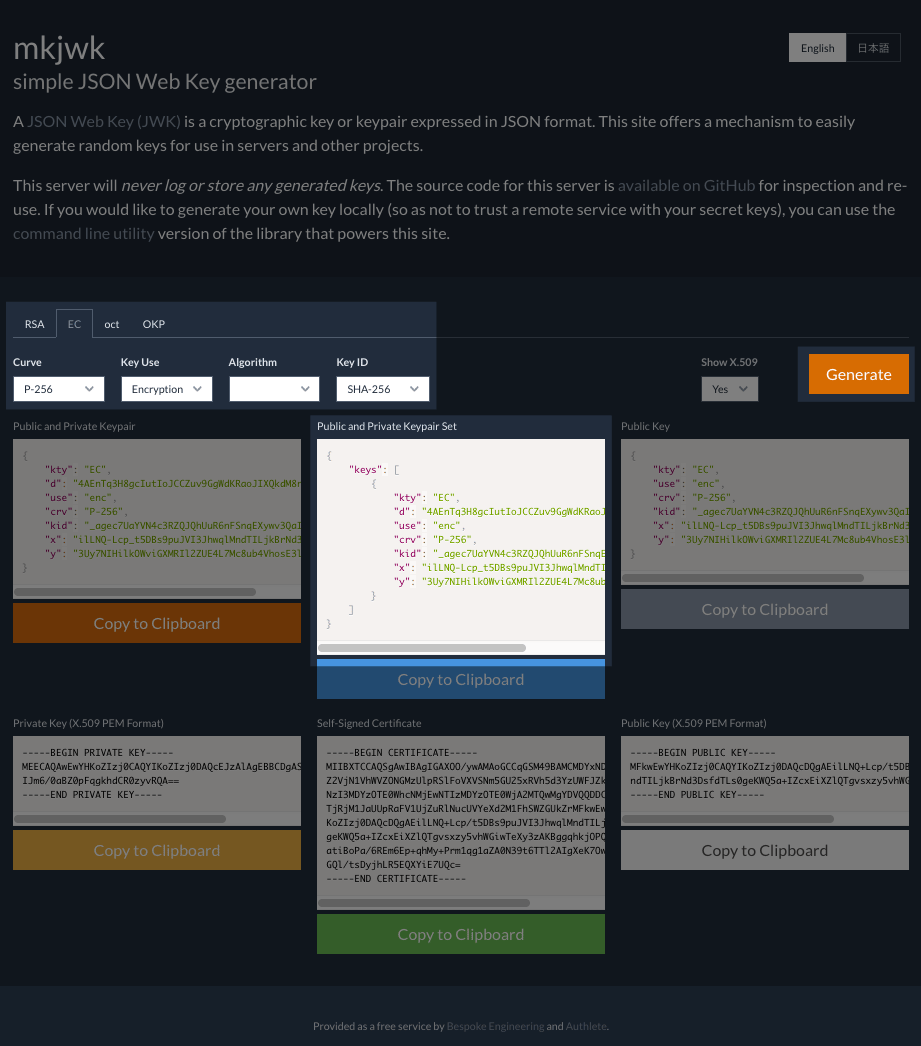 *Generating "Public and Private Keypair Set"*
The original JWK set is as follows.
```
{
"keys": [
{
"kty": "EC",
"d": "4AEnTq3H8gcIutIoJCCZuv9GgWdKRaoJIXQkdM8r0UA",
"use": "enc",
"crv": "P-256",
"kid": "_agec7UaYVN4c3RZQJQhUuR6nFSnqEXywv3QaIfFRFk",
"x": "ilLNQ-Lcp_t5DBs9puJVI3JhwqlMndTILjkBrNd3Dsc",
"y": "3Uy7NIHilkOWviGXMRIl2ZUE4L7Mc8ub4VhosE3l8t8"
}
]
}
```
Remove a private key below.
```
"d": "4AEnTq3H8gcIutIoJCCZuv9GgWdKRaoJIXQkdM8r0UA",
```
The result\*\* \*\*is as follows.
```
{
"keys": [
{
"kty": "EC",
"use": "enc",
"crv": "P-256",
"kid": "_agec7UaYVN4c3RZQJQhUuR6nFSnqEXywv3QaIfFRFk",
"x": "ilLNQ-Lcp_t5DBs9puJVI3JhwqlMndTILjkBrNd3Dsc",
"y": "3Uy7NIHilkOWviGXMRIl2ZUE4L7Mc8ub4VhosE3l8t8"
}
]
}
```
This JSON document is to be used as a JWK set of the client's public key.
## Registering a JWK set
Register the public key JWK set to the settings of the OAuth / OIDC client.
In Developer Console, add the JWK set to "JWK Set Content" under "JWK Set" tab for the client.
*Generating "Public and Private Keypair Set"*
The original JWK set is as follows.
```
{
"keys": [
{
"kty": "EC",
"d": "4AEnTq3H8gcIutIoJCCZuv9GgWdKRaoJIXQkdM8r0UA",
"use": "enc",
"crv": "P-256",
"kid": "_agec7UaYVN4c3RZQJQhUuR6nFSnqEXywv3QaIfFRFk",
"x": "ilLNQ-Lcp_t5DBs9puJVI3JhwqlMndTILjkBrNd3Dsc",
"y": "3Uy7NIHilkOWviGXMRIl2ZUE4L7Mc8ub4VhosE3l8t8"
}
]
}
```
Remove a private key below.
```
"d": "4AEnTq3H8gcIutIoJCCZuv9GgWdKRaoJIXQkdM8r0UA",
```
The result\*\* \*\*is as follows.
```
{
"keys": [
{
"kty": "EC",
"use": "enc",
"crv": "P-256",
"kid": "_agec7UaYVN4c3RZQJQhUuR6nFSnqEXywv3QaIfFRFk",
"x": "ilLNQ-Lcp_t5DBs9puJVI3JhwqlMndTILjkBrNd3Dsc",
"y": "3Uy7NIHilkOWviGXMRIl2ZUE4L7Mc8ub4VhosE3l8t8"
}
]
}
```
This JSON document is to be used as a JWK set of the client's public key.
## Registering a JWK set
Register the public key JWK set to the settings of the OAuth / OIDC client.
In Developer Console, add the JWK set to "JWK Set Content" under "JWK Set" tab for the client.
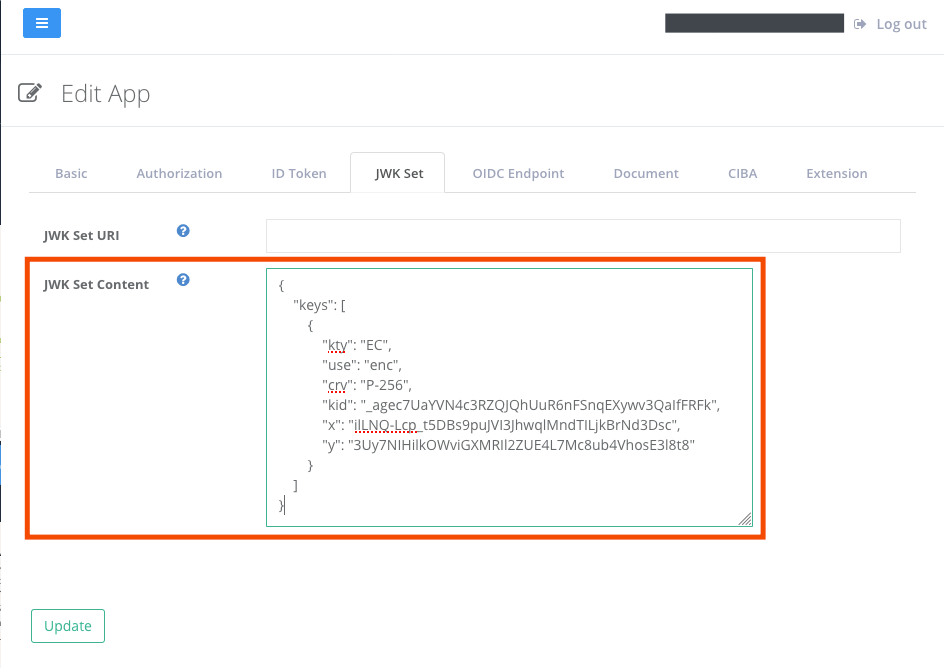 *Registering the JWK set for the client*
Now the JWK set has been registered for the OAuth / OIDC client.
*Registering the JWK set for the client*
Now the JWK set has been registered for the OAuth / OIDC client.